Akuvox door phones and access control terminals can be integrated with the IVSEC NC529XA License Plate Recognition (LPR) Camera to enable automatic garage door access.
To configure the integration, first assign one or more vehicle licence plates to a user on the Akuvox access device. Next, configure the IVSEC camera to transmit recognised licence plate data to the Akuvox device using the HTTP API. When the camera detects a licence plate that matches a plate assigned to a user on the device, the garage door will automatically open.
Screenshots below are from an Akuvox A08S running firmware version 108.30.11.213
The integration process consists of the following three steps:
- Enable the HTTP API on the Akuvox access device.
In below example we are using no authentication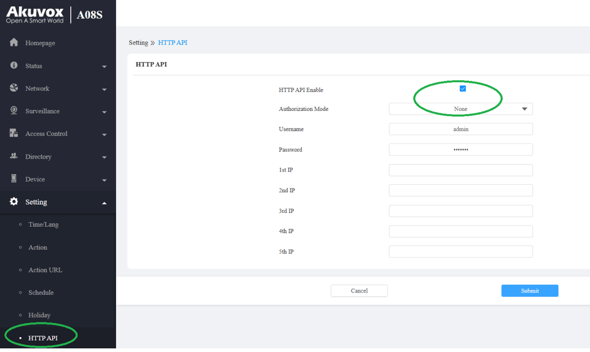
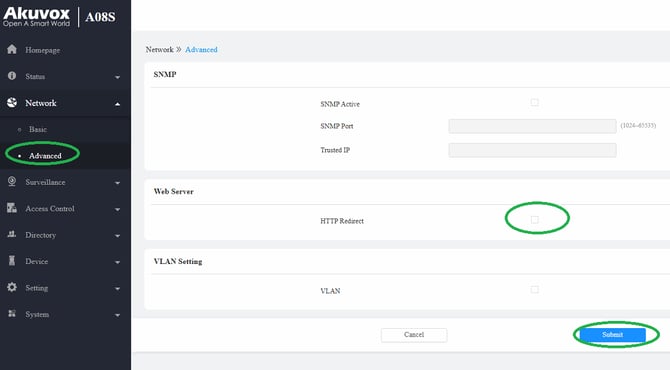
- You may need to untick "HTTP Redirect" under Network Advanced if you use HTTP as per step 9
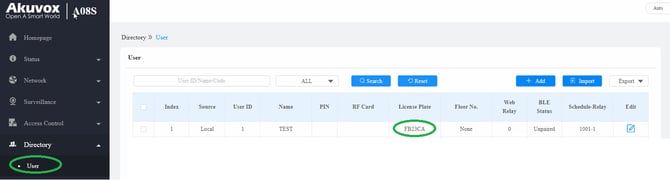
- Assign licence plate information to a user on the Akuvox device. Check the relay connected to the door lock and apply the schedule within which the user is allowed to open the door.
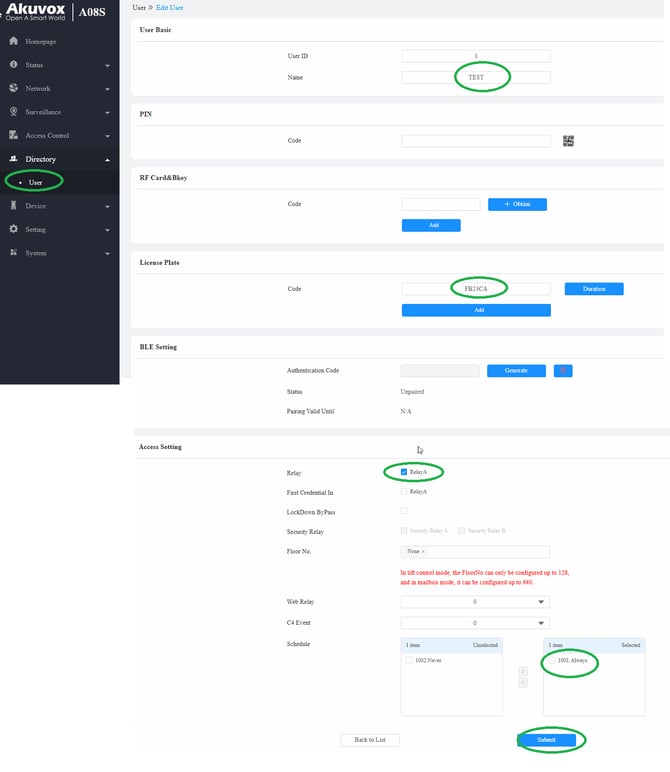
User list below
4. Configure the IVSEC NC529XA camera to send recognised licence plate data to the Akuvox device.
Ensure the camera is running firmware version VC48.55.1.3.0-260702
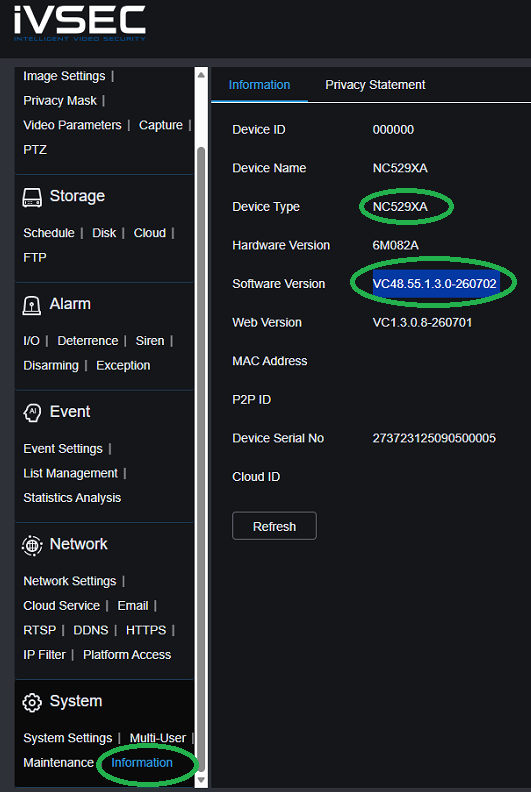
If your NC529XA is running a different software version download the firmware from the link below and follow the instructions located inside the zip file:
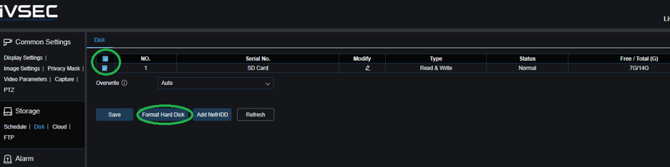
5. Once firmware version has been confirmed, Insert SD card into NC529XA and format it
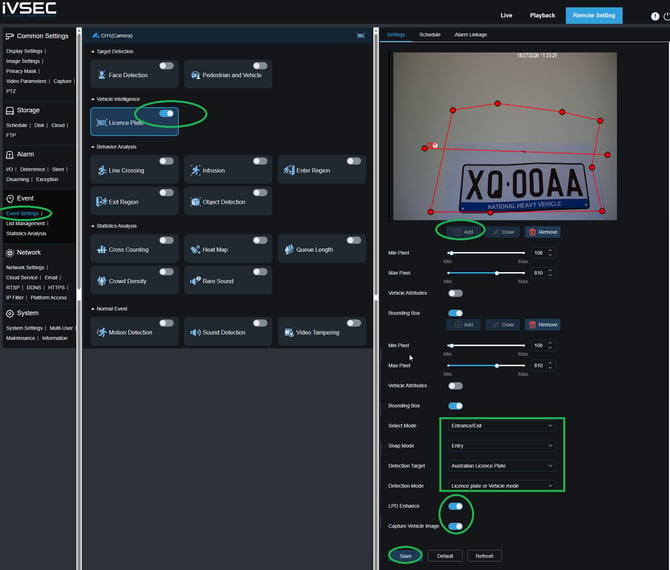
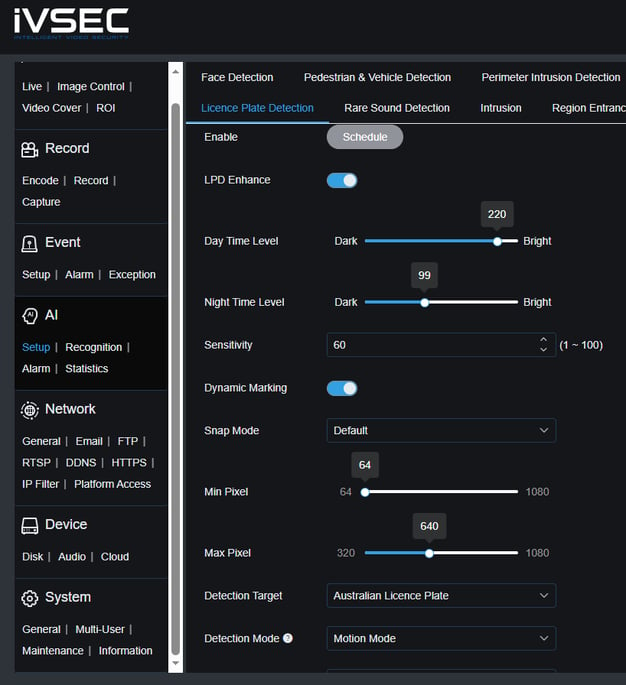
6. Event Settings - Enable "Licence Plate". Add red area on live image to determine where the licence plate will be detected. Set all other menus as per below image including enabling LPD enhance. Press "Save"
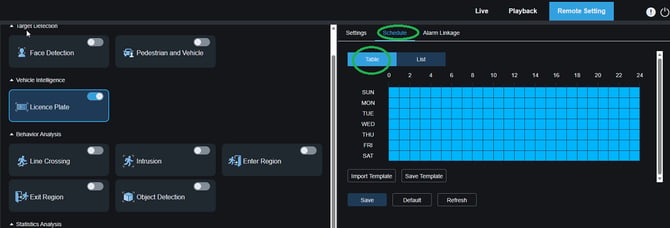
7. Schedule - Ensure table schedule set for 24 hours 7 days a week (as shown with a full table of blue)
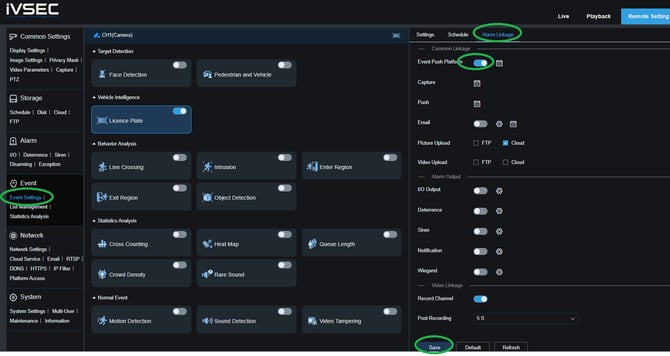
8. Alarm Linkage - Enable Event Push Platform - Click "Save"
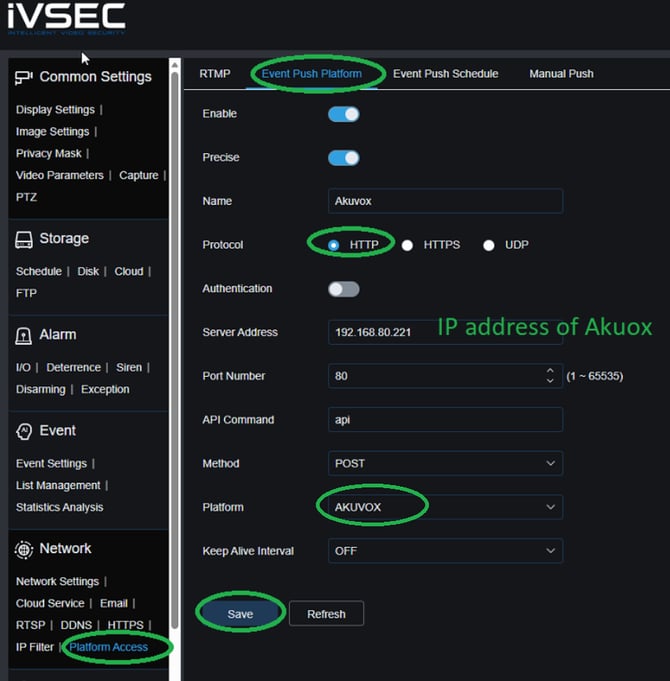
9. Platform Access - Event Push Platform
Enable
Precise
Name: Akuvox
Protocol: HTTP
No Authentication
Server Address: IP address of the Akuvox device you will be sending Licence Plate details to
Port Number: 80
NOTE: (443 if you use HTTPS protocol, you will also need to re-enable option on step 2 if you plan on using HTTPS)
API Command: api
Method: POST
Platform: AKUVOX (NOTE: This is a critical step)
Click "Save"
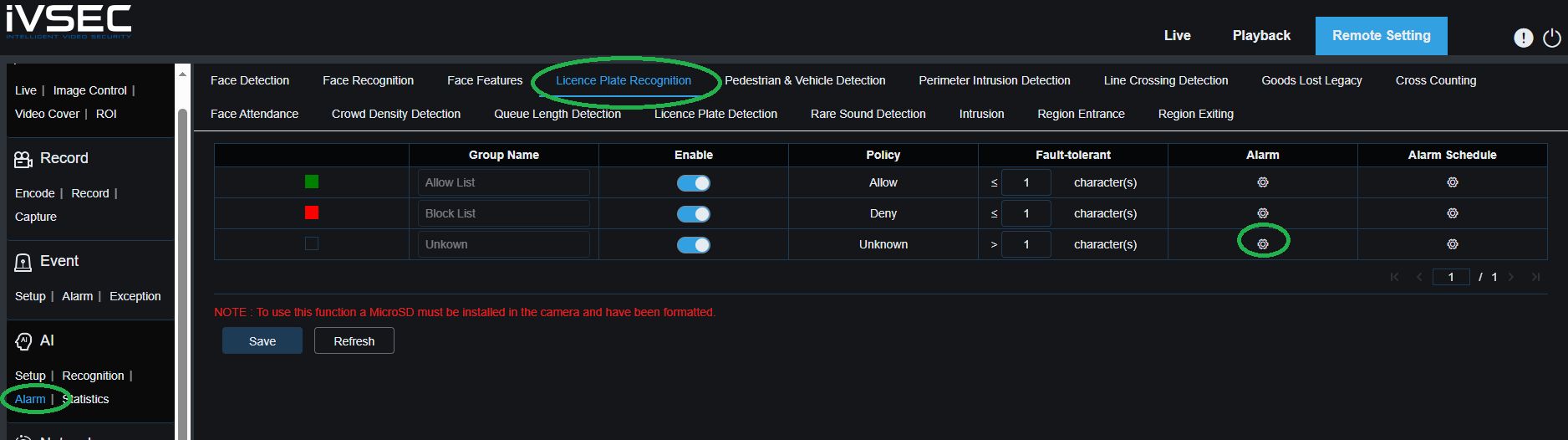
10. List Management - Licence Plate Management (NOTE: this menu will NOT be available unless you have an working formatted SD card installed)
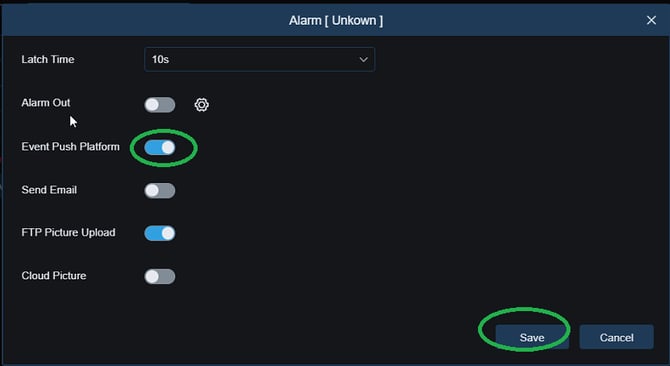
Under the "Unknown" line click on "Alarm" gear icon
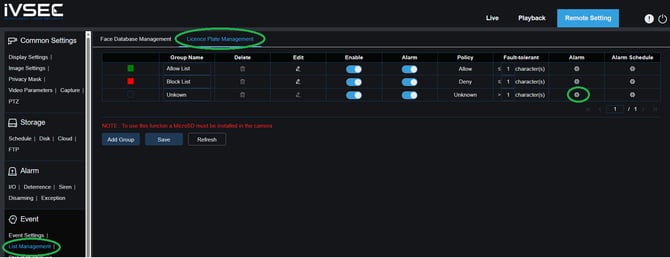
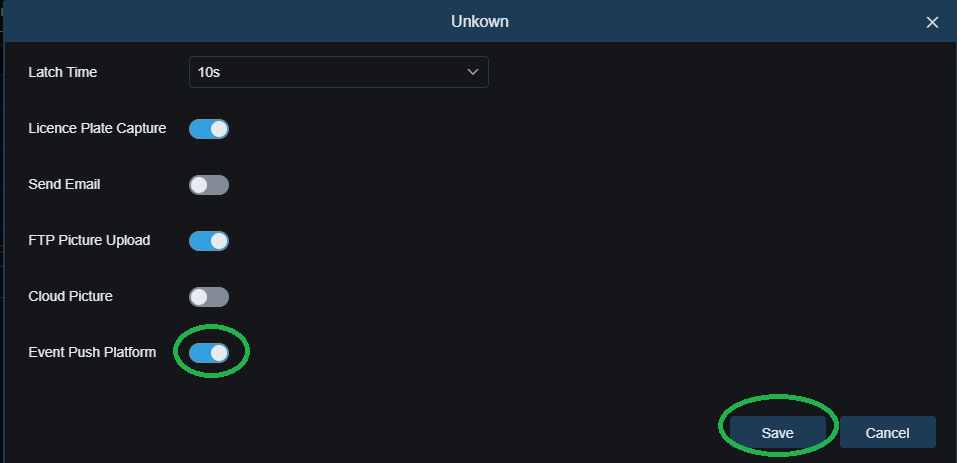
Enable "Event Push Platform". Click "Save"
11. Test Licence Plate Detection in front of camera to ensure the plate is being detected correctly
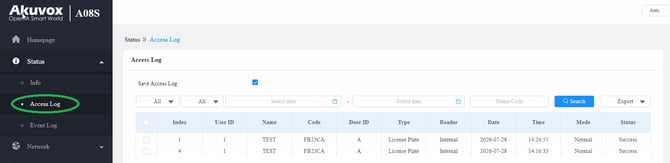
If the licence plate details is received by the A08 and it matched the licence plate data listed in the user then it should trigger the relay for that user.
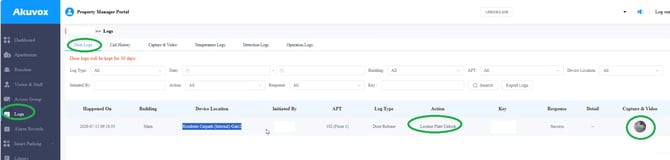
Access Logs of A08 Licence Plate Data being received
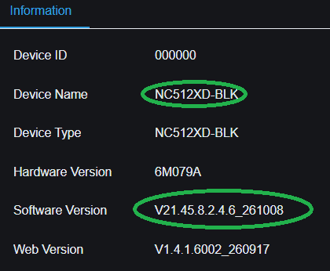
NOTE: iVSEC model NC512XD is also compatible using below firmware file.
Ensure the NC512XD camera is running firmware version V21.45.8.2.4.6_261008
NOTE: The NC529XA and NC512XD have slight interface differences however the process is generally the same. Refer to below screenshots for assistance
Insert the SD card into camera and format it (Storage)
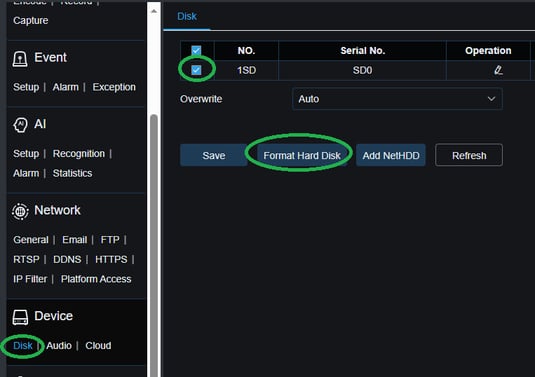
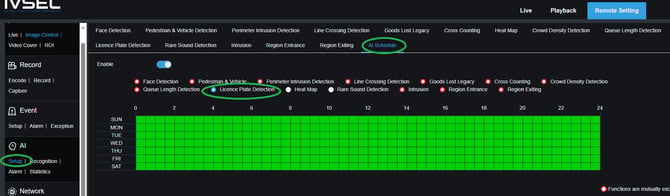
Set "Licence plate detection" schedule. Make sure the table is green. If it is grey you will need to select "pedestrian & Vehicle detection", deselect the green table and then go back into "Licence Plate Detection" and select the whole table to become green as per below image
Variables with other Akuvox models:
A095 running firmware 95.30.11.13
Network - Advanced - Web Server - Make sure both HTTP and HTTPS are enabled. This will allow you choose between HTTP or HTTPS authentication as shown in step 9
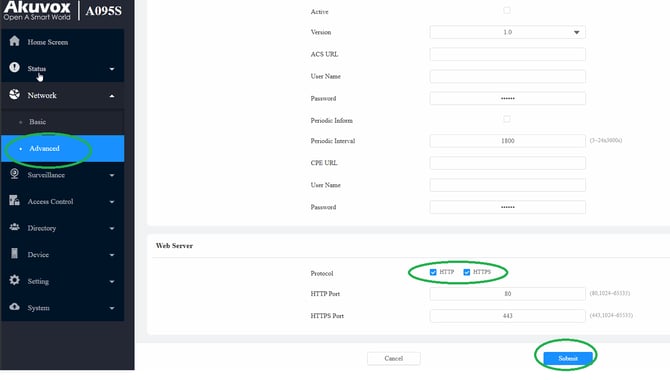
Above menu also applies to X912
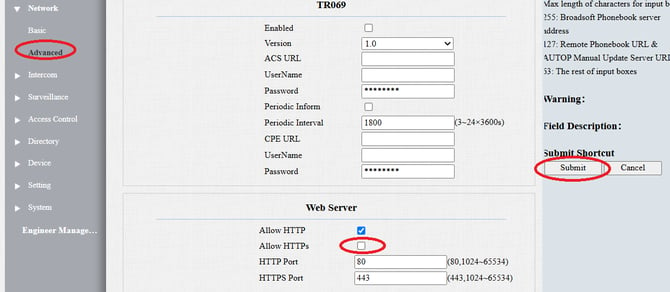
For the Akuvox R20K running firmware 320.30.12.109 when using HTTP for authentication in NC529XA Event Push Platform, login to the R20K - Network - Advanced
Untick "Allow HTTPs" and click submit. Once complete you will need to login back into the unit
For Cloud Projects
See the Compatibility table above to confirm your device supports this feature.
When the device is managed via SmartPlus/Smart Access Cloud, license plates are issued from the cloud instead of being entered locally on the device.
Depending on your project type, license plates can be added by:
- New commercial projects (created after Oct 15, 2024).
- Installers and project managers can add license plates via the Smart Access Property Management Portal.
- Administrators can add license plates via the Smart Access Administrator Portal.
- Community projects: Only property managers can add license plates via the SmartPlus Property Manager Portal.
- Single-house projects: End users can add license plates via their SmartPlus App.
LPR can also be used in Akuvox Smart Parking which is a feature available in the Property Manager Portal
https://www.youtube.com/watch?v=DMmP-13ZvX0
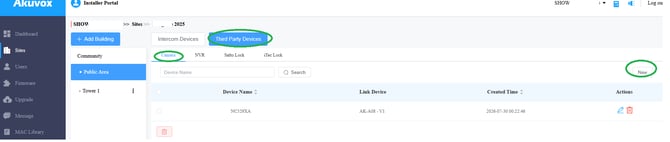
Adding camera stream to Akuvox Cloud Platform
1. Login to your Akuvox Cloud Account
2. Choose the site. Third Party Devices - Camera
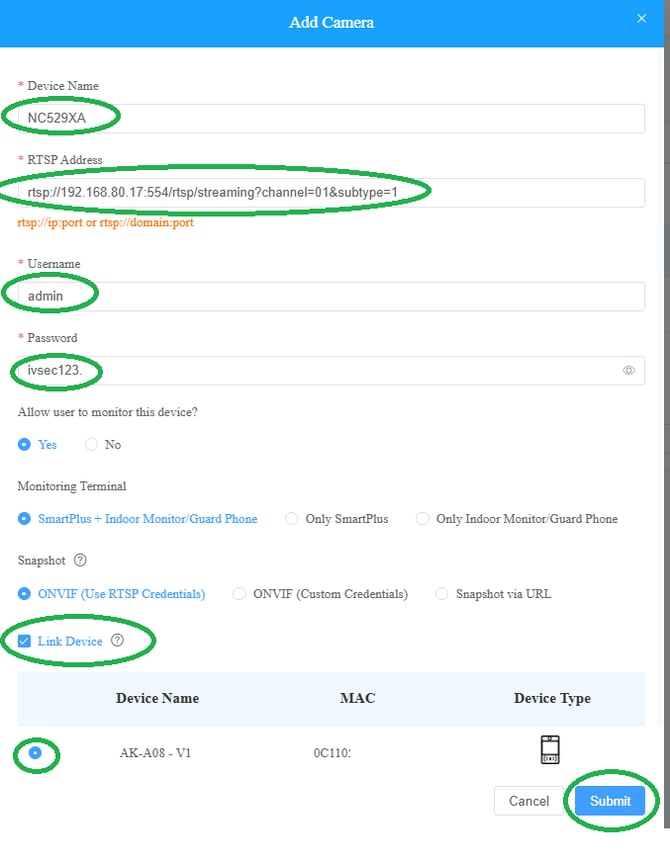
Enter the following details and link the camera to a device:
rtsp://Cameraipaddress:554/rtsp/streaming?channel=01&subtype=1
Adding the camera stream will generate a snapshot that will be visible within the door logs of the property manager portal